PJe Office System Requirements for Windows, macOS, and Linux
PJe Office system requirements are best checked in three layers: your operating system, your computer's processor architecture, and the software that lets a certificate token communicate with the signer. Check each layer before choosing a package; the same computer can pass one check and still have an incompatible certificate driver.
Compare official package linksPJe Office system requirements at a glance
The PJe Office system requirements that matter most are your operating system, processor architecture, and certificate middleware.
For PJe Office system requirements, use the official package list for supported systems. This guide shows where to read OS and architecture details. The official documentation could not be checked live, so no minimum OS version, current release, or universal distribution claim is made.
Before downloading, identify the OS and architecture, then compare them with the package description. Windows packages can differ by 32-bit or 64-bit architecture; Mac packages may distinguish Intel from Apple Silicon. Linux support can depend on the distribution and its libraries. A package extension alone does not prove that an OS release is supported.
Certificate hardware adds another layer. An A1 file, an A3 token or smart card, its middleware, a PKCS#11 library, and PJeOffice are separate pieces. An architecture mismatch can prevent a token certificate from appearing even when the application starts.
What to check before selecting a package
Record the OS name, release, and architecture from its system-information screen. Do not rely on the computer's marketing name: a 64-bit processor can still run a 32-bit OS, and the installed system determines which application package can run.
For an A3 certificate, note the token provider and follow its current driver matrix. Middleware may have separate OS and architecture requirements, so the application package must satisfy both sets of instructions.
What this guide does not certify
This independent guide is not an official support matrix and cannot certify a token model or minimum OS version. Check the official package page and certificate-provider documentation on the day you install.
Windows, Mac, and Linux: what to verify
Use this comparison to apply the PJe Office system requirements to facts you can inspect. It is a selection checklist, not a promise that an unlisted OS release is supported.
| Computer | Check first | Package detail to compare | Next guide |
|---|---|---|---|
| Windows PC | Windows edition and System type | 32-bit or 64-bit installer; confirm token middleware compatibility separately | Windows guide |
| Mac | Intel processor or Apple chip, plus macOS release | Choose the package explicitly listed for that processor family; confirm the supported macOS release | Mac guide |
| Linux computer | Distribution, release, and output of uname -m | Check package architecture and documented libraries; follow the distribution-specific launch steps | Linux guide |
| Any system with A3 | Token or smart-card provider and its middleware | Check driver architecture and supported OS with the provider; do not infer it from the USB device shape | Certificate troubleshooting |
Find your processor architecture
Use the operating system's own information screen or command. If the result does not match a package label, pause and confirm the official instructions before installing.
- 1
On Windows
Open Settings, choose System, then About, and read the System type entry. It identifies whether the installed Windows system is 32-bit or 64-bit and may also describe the processor. Match the installer to the installed system, not just to a processor specification copied from a product listing.
- 2
On macOS
Open the Apple menu and choose About This Mac, or use System Settings and General, then About. Read whether the Mac uses an Intel processor or an Apple chip. For an Apple chip Mac, follow the official Apple Silicon package guidance; do not assume an Intel installer is interchangeable.
- 3
On Linux
Open a terminal and run
uname -m. Common outputs includex86_64for a 64-bit x86 system andaarch64for 64-bit ARM, but distributions and package support vary. Compare the exact result with the official package notes before unpacking or launching anything. - 4
Check certificate middleware too
For an A3 token or smart card, use the certificate provider's name and driver documentation to identify the required middleware and architecture. The token being detected by the operating system does not prove that the PJeOffice process can load the provider's library.
Match the computer before you install
The architecture check helps you narrow the package choice, but it does not replace the official compatibility list.
A computer can have a 64-bit processor while still running a 32-bit operating system. The installed operating system is the value that determines which application package can run. Read the OS information directly instead of guessing from the age of the device, its processor name, or the way a token is shaped.
The page's three practical checks are OS release, application architecture, and certificate middleware. Keep the results together. If one is unknown, resolve that question with the operating-system vendor, official PJeOffice documentation, or the certificate authority before you use an installer from another source.
- Record the OS and exact release shown in settings.
- Record the architecture reported by the installed OS.
- Check the token provider's driver requirements before connecting an A3 device.
Separate PJeOffice from token drivers
The desktop signer and certificate middleware work together, but they are not the same program.
PJeOffice is the local signer. An A1 certificate uses a file; an A3 certificate may depend on a reader, provider driver, and PKCS#11 library with separate OS or architecture requirements.
If the signer cannot list a certificate, check device visibility, provider middleware, and the selected library. A visible USB device does not prove a valid certificate is available to the current user.
Reinstalling PJeOffice cannot add a certificate or replace an incompatible reader driver; change the component that matches the symptom.
Treat the signer and its dependencies as a chain
The computer, application, certificate library, and portal each own a different part of the signing path.
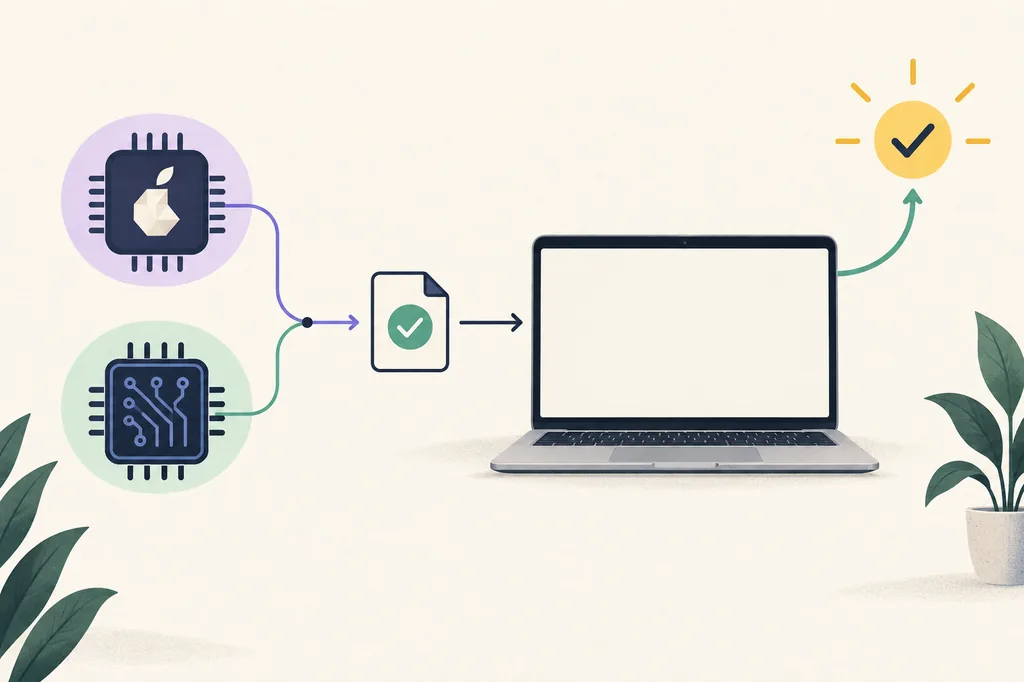
A successful installation proves only that the package installed. It does not prove that a token driver loads, a certificate is valid, or a browser can call the local signer.
If the app opens without listing a certificate, check middleware. If a portal cannot call the signer, check its browser instructions. A remote court-service problem is unlikely to be fixed by reinstalling locally.
- Application fails to open: confirm the OS and package architecture.
- Token is missing: confirm the provider's middleware and device state.
- Portal cannot connect: follow the browser or court's official support path.
A token driver can be a separate requirement
For A3 certificates, PJeOffice may need the token provider's middleware before it can read a certificate.
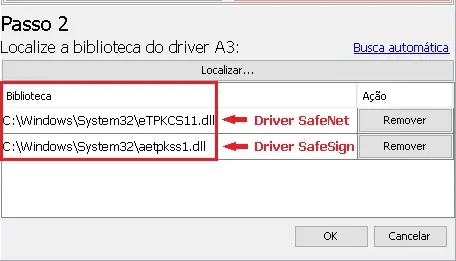
This official documentation example shows driver libraries being selected for an A3 device. The library names and paths shown in a screenshot may differ from your token provider's current package, OS, or architecture. Use it to understand the kind of dependency involved, not as a universal driver download or a set of paths to copy.
Install middleware only from the certificate authority or device manufacturer's trusted channel. If you need manual PKCS#11 selection, ask the provider for the exact library file and supported architecture. Never email a private key, certificate password, or token PIN to a support contact or this website.
- Confirm the token model and provider before choosing a driver.
- Check that the driver supports the OS release and PJeOffice architecture.
- If the device remains missing, use the provider's support process before changing global security settings.
A quick compatibility checklist
Before opening an installer, verify these facts in the operating system and first-party documentation.
Do not guess from a computer model or a token's appearance
Confirm the OS release and architecture, then check certificate middleware with its provider. Use the official PJeOffice page for the current platform list. If your environment is not listed, ask official support rather than forcing an unrelated installer.
Keep the installer filename and source domain visible. Do not disable antivirus, Gatekeeper, or organizational controls globally to run an unverified file; pause if trusted instructions do not explain a warning.
Confirm the current package on the official source
Software support changes over time, so use a first-party page for the final platform and release decision.
For PJe Office system requirements, open the official PJeOffice page and compare its platform list with your computer's system information. This site is an independent guide and does not distribute or repackage PJeOffice. The official page could not be retrieved for a fresh compatibility check, so no current release number or minimum OS version is claimed here.
If the official package page and the certificate provider disagree, ask the provider which middleware build it supports and use the official PJeOffice support route for the application question. When a package is available, follow its platform-specific installation notes, then test certificate recognition with a low-risk action before signing a real filing.
PJe Office compatibility questions
Answers that help you choose a package without guessing unsupported system versions.
What are the PJe Office system requirements?
Check the official package list, then match it to your OS architecture. A3 token middleware may have separate requirements. This guide does not claim unverified minimum OS versions.
Does PJeOffice work on 32-bit Windows?
The site documents 32-bit and 64-bit package choices. Check the current official list; a 32-bit Windows installation cannot run a 64-bit package.
How do I tell whether my Mac is Intel or Apple Silicon?
Open About This Mac or System Settings, General, About, and read the processor or chip field. Match it to the package listed by PJeOffice.
What should Linux users check before installing PJeOffice?
Check the distribution and release, run uname -m, and compare both with official package notes. A ZIP alone does not confirm support for every distribution.
Can an A3 token have different requirements from PJeOffice?
Yes. A token, reader, middleware, or PKCS#11 library may have separate OS and architecture requirements. Ask the provider if the app cannot list the certificate.